Overview
This document explains how to enable macros in Microsoft® Office applications. Some of the tools provided by KeyValueData, such as analysis workbooks that you can download from our web databases, require that macros be enabled. This document is divided into two sections:
 Enabling Macros in Office 2003
Enabling Macros in Office 2007
Enabling Macros in Office 2003
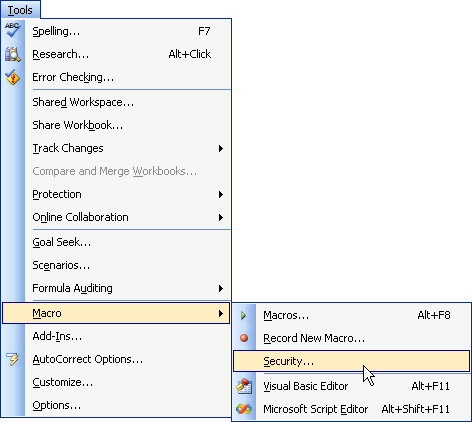
From the Tools menu, select Macro, then Security. The example below is from Excel. The menus in the other Office applications will appear slightly different.
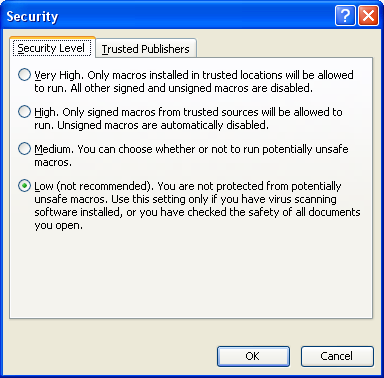
The application will open the Security Dialog Box. Select the Low option, then select OK.
Enabling Macros in Office 2007
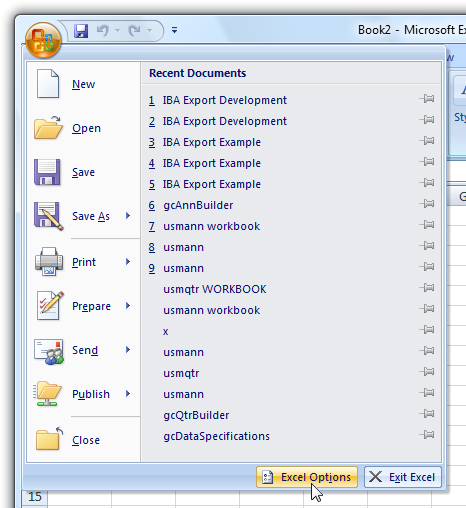
Click on the Office button, then select the Options button. The example below is from Excel. The available selections in the other Office applications will appear slightly different.
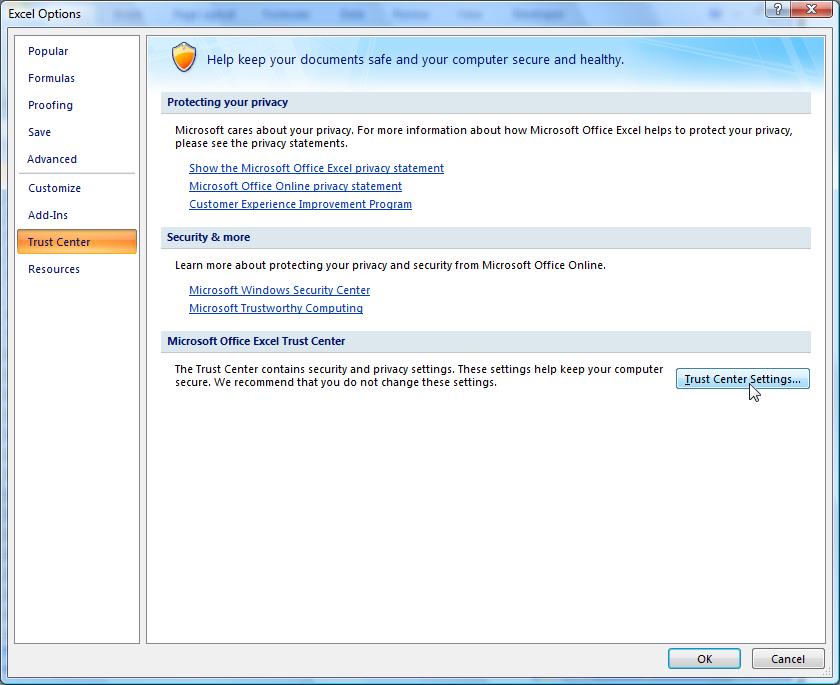
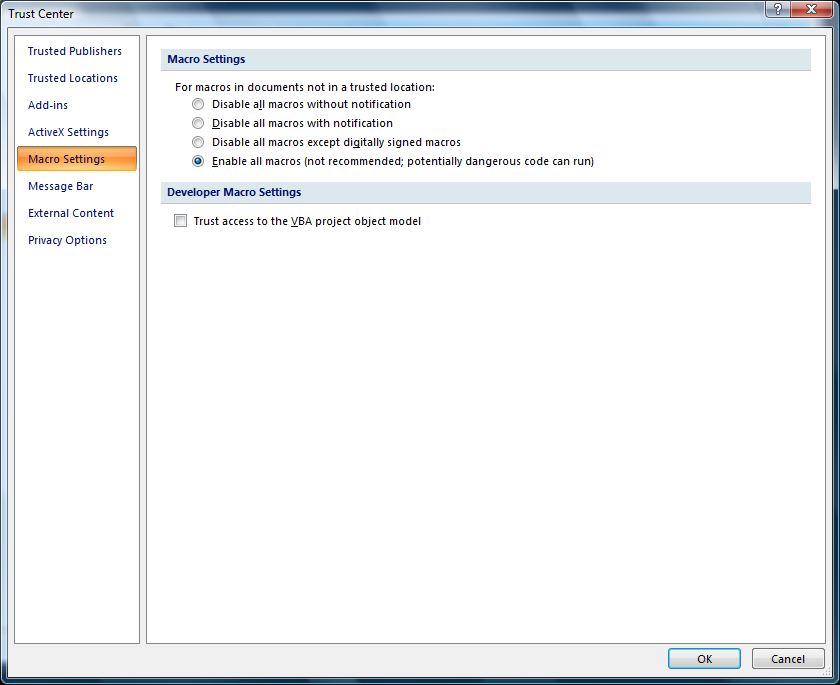
The application will open the Options Dialog Box. Select Trust Center on the left, then select Trust Center Settings over on the right.