BESWeb
File Operations
|
Overview On the Evaluation Screen, the first section of the toolbar contains standard file commands. These commands are explained below. Toolbar File Commands
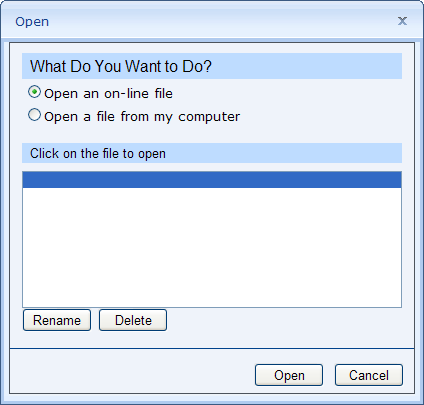
New Select the New command to create a new evaluation. If you have made changes to the evaluation you're currently working on, BESWeb will ask what you want to do with those changes. You can save them before you proceed, abandon the changes, or stop creating a new evaluation and continue editing the current one. Open Select the Open command to open an evaluation you previously saved. If you have made changes to the evaluation you're currently working on, BESWeb will ask what you want to do with those changes. You can save them before you proceed, abandon the changes, or stop creating a new evaluation and continue editing the current one. You open an evaluation file using the Open File Controls. For help using these controls, see the steps below. Open File Controls
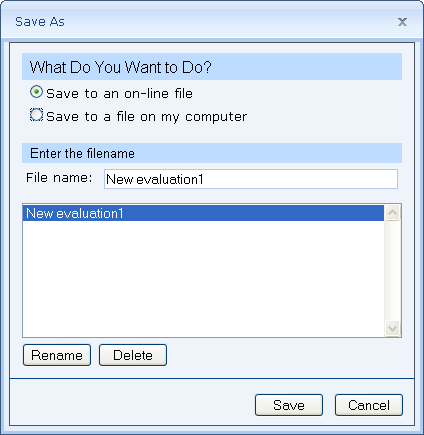
Close Select the Close command to close the current evaluation. If you have made changes to the evaluation you're currently working on, BESWeb will ask what you want to do with those changes. You can save them before you proceed, abandon the changes, or stop closing the evaluation and continue editing it. Save Select the Save command to save your evaluation to a file. If you're working on an evaluation that has been saved on the ValuSource server, the file will be updated automatically. If you're working on a new evaluation and haven't saved it yet, or if you saved the evaluation to a file on your computer, BESWeb will present the Save File As Controls. See below. Save As Select the Save As command to save the evaluation under a new file name. BESWeb will present the Save File As Controls. For help using these controls, see the steps below. Save File As Controls
If you're saving the file on your computer, enter a name in the File name text box.
|