BESWeb

Quick Start Guide

Overview

Business Evaluation Systems (BESWeb) is designed for evaluating closely-held, small to medium-size businesses. The application produces a Business Evaluation, which is a fast and efficient method for determining the present market value of a business.

A Business Evaluation does not meet all the requirements of a formal Business Appraisal Report. If a formal Business Appraisal is either desired or required by law, you should consider using ValuSource Pro or Express Business Valuation instead of BESWeb. To order either of these programs, please call ValuSource sales at 800-825-8763.

Recommended Web Browsers

We recommend using BESWeb with either Mozilla Firefox version 3.5 or later, or with Microsoft Internet Explorer version 7 or later.

Using BESWeb

BESWeb is divided into three screens: Quick Start, Evaluation, and Report. You select a screen by clicking on its tab.

Screen Tabs

For help using the Quick Start Screen, see the sections below.
For help using the Evaluation Screen, click here.

For help using the Report Screen, click here.

Using the Quick Start Screen

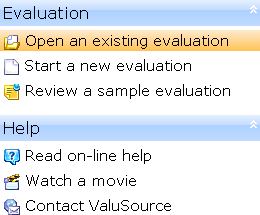
The Quick Start Screen's commands are grouped into two lists on the left side of the screen: Evaluation and Help. You can open and close a list by clicking on its header. When you select a command from a list, the controls for using the selected command appear on the right side of the screen. Follow the instructions that appear on the right side of the screen.

For help using the Quick Start Screen to create and open evaluations and to review the sample evaluations, see the sections below.

Creating a New Evaluation

To create a new evaluation from the Quick Start Screen:

  1. Under the Evaluation header, select Start a new evaluation.
  2. On the right side of the screen, select Create a new evaluation.

For more help, see Performing an Evaluation.

Opening an Existing Evaluation

To open an evaluation from the Quick Start Screen:

  1. Under the Evaluation header, select Open an existing evaluation.
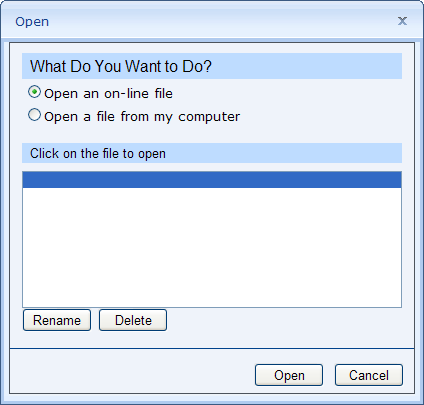
  2. On the right side of the screen, select More files. BESWeb will present the controls for selecting an evaluation file.

Open File Controls

  1. You can select a file stored on the ValuSource server, or on your own computer. To select a file on the server, select Open an on-line file. To select a file on your computer, select Open a file from my computer.
  2. If you're opening a file on the server, select it from the list. If you're opening a file on your computer, click on the Browse button and locate the file.
  3. Click on the Open button. BESWeb will load the evaluation file that you selected.

For more help, see Performing an Evaluation.

Reviewing a Sample Evaluation

To review one of the sample evaluations that come with BESWeb:

  1. Under the Evaluation header, select Review a sample evaluation.
  2. On the right side of the screen, select the evaluation that you want to review.

For more help, see Performing an Evaluation.