BIZCOMPS®
Transaction Analysis Workbook
|
Overview The Transaction Analysis export option for the KeyValueData BIZCOMPS® database downloads transaction data in a Microsoft® Excel workbook that contains analysis worksheets and charts. This document explains how to use the analysis workbook. It contains the following sections:
About the Data The BIZCOMPS® User Guide explains the data. To see the User Guide, click here. Click here to read the BIZCOMPS® data field definitions.
There are seven worksheets and nine charts in the analysis workbook. About The About worksheet contains two hyperlinks, one to help on enabling the macros used in the workbook, and one to this help file. It also summarizes the other worksheets and charts. Extended Data The Extended Data worksheet contains all of the data available for the downloaded transactions. A subset of this data is used in the analysis performed in the workbook. The data used in the analysis is drawn from the Trans Selected worksheet. Select Trans The Select Trans worksheet shows the selection status for all of the downloaded transactions. You can manually select the transactions to analyze.
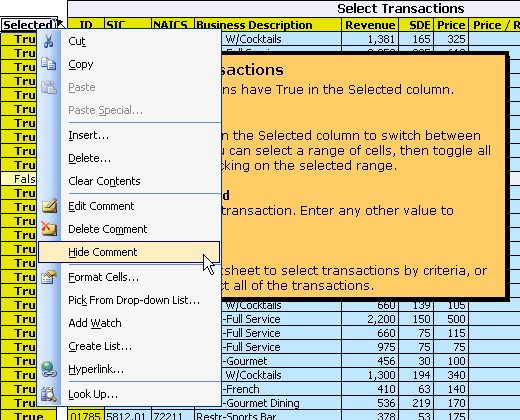
When you first open a workbook, the Select Trans worksheet displays a comment explaining how to select transactions. To hide this comment, right-click on the Selected column header and choose Hide Comment from the Excel pop-up menu. Hiding the Comment
Trans Selected The Trans Selected worksheet contains the selected transactions. The data used in the analysis comes from this worksheet. The Trans Selected worksheet is updated automatically every time you change the transactions that are selected in the Select Trans sheet. You can deselect transactions from this worksheet. Like the Select Trans worksheet, the Trans Selected worksheet has a comment attached to the Selected column header that you need to hide before you use the worksheet. Tools The Tools worksheet automates analysis tasks. You can select transactions by search criteria (such as revenue or SDE), sort the transactions in all of the worksheets at once, export the selected transactions to a new workbook, and more. For help, see the following sections:
Statistics The Statistics worksheet provides two groups of statistics, one for all of the downloaded transactions, and one for the selected transactions. Histogram Data The Histogram Data worksheet contains the data used in the histogram charts. Scatter Charts A scatter chart shows the relationship between two variables, with each selected transaction appearing as a point showing the transaction's values for the two variables. There are four scatter charts in the workbook:
A histogram shows how the selected transactions are distributed across the range of a given variable. For example, the Trans by Revenue histogram shows how many transactions fall into each percentile of the revenue range, with the minimum revenue at the first percentile (1%) and the maximum revenue at the one hundredth percentile (100%). There are five histograms in the workbook:
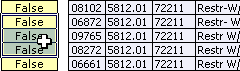
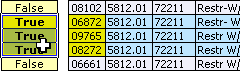
Y Axis Scale The histograms can share a common Y axis scale, or can be scaled independently. See Common Histogram Y Axis. Selecting Transactions for Analysis A transaction is selected for analysis when it displays True in the Selected column of the Select Trans worksheet. The following image shows two transactions, one that is selected for analysis and one that is not: |

|
There are two ways to select transactions:
Selecting Transactions Manually You can select and deselect transactions from the Select Trans worksheet. You can deselect transactions from the Trans Selected worksheet.
To select or deselect a transaction using the mouse, right-click on its cell in the Selected column. The cell will change to the opposite setting. If you are deselecting a transaction, the cell will change from True to False. If you are selecting a transaction, it will change from False to True. You can select a range of cells, then toggle all of them by right-clicking on the selected range.
To select a transaction using the keyboard, enter the numeral one ("1") in the transaction's cell in the Selected column of the Select Trans worksheet. You deselect a transaction by entering zero, or by emptying the cell (press [Delete]). When you're using the Select Trans and Trans Selected worksheets, it can be helpful to sort the transactions by data field. To do this, right-click on the column header for the data field. |
Data Field Column Headers
![]()
|
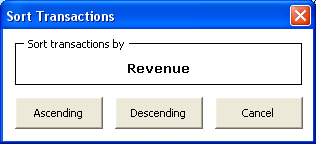
For example, to sort the transactions by revenue, right-click on the Revenue column header, the yellow cell at the top of the column with "Revenue" in bold text. The workbook will open a dialog box for selecting the sort order. Click on the button for the sort order you prefer. Sort Transactions Dialog Box
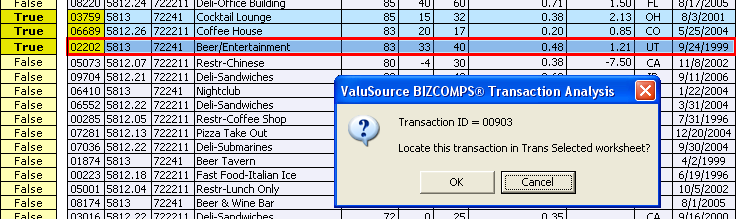
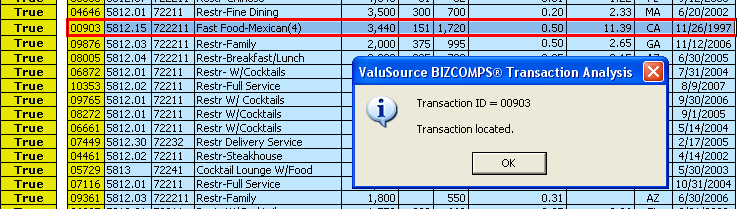
Locating a Transaction You may want to verify that a transaction you have selected in the Select Trans worksheet actually appears in the Trans Selected worksheet. And you may want to find a transaction that you see in the Trans Selected worksheet in the Select Trans worksheet. To do this, right click on the yellow ID cell for the transaction. The workbook will put a red border around the transaction data and ask if you want to proceed. |

|
When you select the OK button, the workbook will find the transaction in the other worksheet, highlight it there, and tell you found it. |

|
Selecting Transactions Automatically From the Tools worksheet you can select transactions automatically. |
|
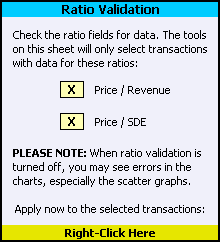
Some transaction records do not have enough data to calculate Price to Revenue and/or Price to SDE. You can omit these transactions from your analysis by filling the checkboxes for the ratios that you want to validate in the Ratio Validation section of the Tools worksheet. You can toggle a checkbox setting by right-clicking on it. To change the setting using the keyboard, enter "X" to fill the checkbox or press [Delete] to empty it. To apply the ratio validation settings to transactions that you have already selected, right-click on the yellow cell at the bottom of the Apply Ratio Validation section labeled Right-Click Here. |
|
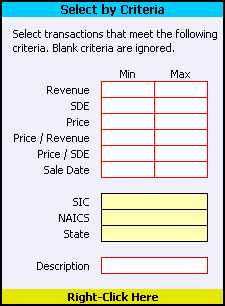
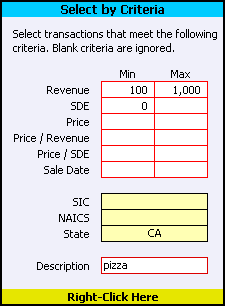
The Select by Criteria tool selects transactions that match criteria you specify. You enter the criteria you want to match, then right-click on the yellow cell marked Right-Click Here. If the tool finds transactions that match the criteria, it takes you to the Trans Selected worksheet so you can review the selected transactions.
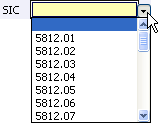
Min and Max Values Most of the criteria accept minimum and maximum values. If you specify both values, the tool selects transactions with values within the range. If you omit the maximum value, the minimum value acts as a floor: the tool selects transactions with values equal to or above the minimum. Likewise, the maximum value acts as a ceiling: if you omit the minimum, the tool selects transactions with values equal to or below the maximum.If you omit both values, the criterion is ignored. SIC, NAICS, and State Codes
For the Description input, the tool looks for the specified text within the Business Description field values. If you enter "lawn," the tool will look for transactions with "lawn" anywhere in the Business Description text. Example The settings shown at right would select transactions with:
|
|
Selecting or Deselecting All of the Transactions The Select All and Deselect All tools let you select or deselect all of the transactions in the downloaded data. To apply either tool, right-click on the yellow cell at the bottom of its section.
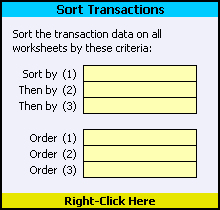
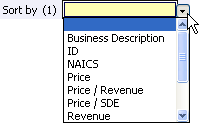
In addition to sorting the transactions on a single data field from the Select Trans and Trans Selected worksheets, the Sort Transactions tool lets you sort on up to three data fields, with a separate sort order for each field. To apply the sort criteria, right-click on the yellow cell at the bottom of the Sort Transactions section of the Tools worksheet. The input cells have drop down lists you can use to select the settings. To open a list, click on the input cell, then click on the down arrow button that appears next to the cell. You can toggle through a list by right-clicking on the input cell. If you don't select a sort order, the default order is ascending.
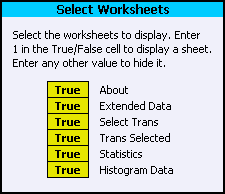
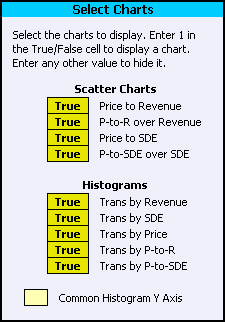
Selecting Worksheets and Charts You can choose which worksheets and charts the workbook displays. You make your selections from the Select Worksheets and Select Charts sections of the Tools worksheet.
To select or deselect a sheet or chart using the mouse, right-click on its its True/False cell. You can select a range of cells, then toggle all of them by right-clicking on the selected range.
To select a sheet or chart using the keyboard, enter the numeral one ("1") in its its True/False cell. To deselect it, enter zero or press [Delete].
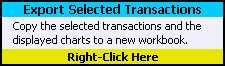
By default, the Y axes of the histogram charts are scaled automatically. Each chart will have the scale best suited to its own data. To make comparing the histograms to each other, you may want them to use a common Y axis scale. The workbook will apply a common Y axis scale when the Common Histogram Y Axis checkbox is filled. You can toggle the checkbox setting by right-clicking on it. To change the setting using the keyboard, enter "X" to fill the checkbox or press [Delete] to empty it. Exporting the Selected Transactions You can copy the selected transactions, the relevant statistics, and the currently displayed charts to a new workbook. If you are working with a large set of transactions, this allows you to create subsets of the data that you can work with independently. To export the selected transactions, right-click on the yellow cell at the bottom of the Export Transactions section of the Tools worksheet.
|